Your data
Your collection is yours. You can download all your data at any time, on every plan and free of charge, and you can delete your account with everything in it. In this chapter you read how, and what 12Collect does with your data.
Download all your data
With Export in the account menu you download one or more collections at once, with your account data included if you want. That way you make a complete copy of all your data, for example as a backup or to move to another program.
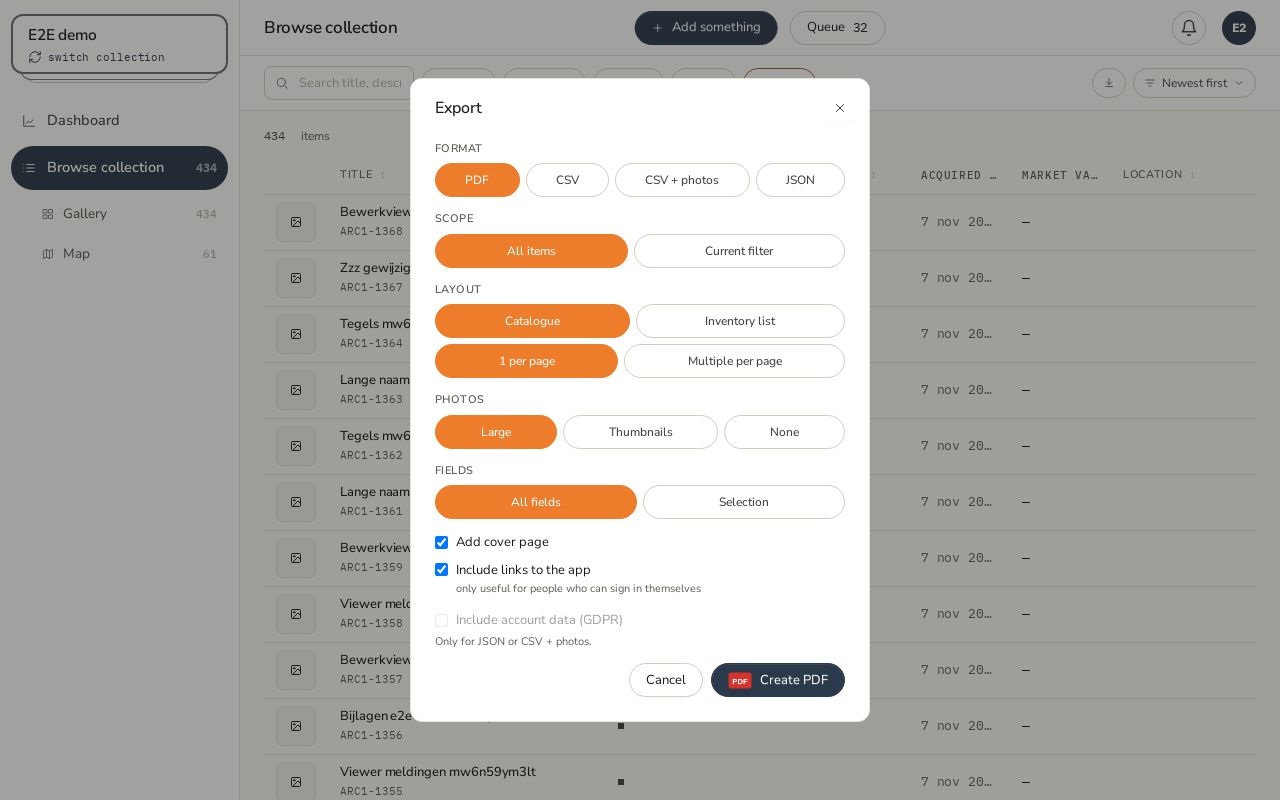
- First open one of your own collections. Without an open collection, Export shows the text Open one of your own collections first.
- Open the account menu, tap Settings and then Import / Export.
- Tap Export (Export my collections).
- Under Format, choose the format. For a complete copy, choose CSV + photos or JSON.
- Under Collections, tick the collections you want to download.
- Tick Include account data (GDPR) if you also want your account data. This only works with JSON and CSV + photos.
- With CSV + photos you also see Include files. Leave it on if you want your files (PDF, Word, Excel, email) included. With your account data they are always included.
- Tap the button at the bottom, for example Create CSV + photos or Create JSON.
You see Your export is being created. You'll get a notification once it's ready. It is made in the background; you can just carry on working.
Tip: You can read how to export one collection, with filters or as a PDF, in the chapter "Exporting and importing".
Get your export
- Wait for the notification at the bell at the top right, for example "Your export of “Munten” is ready".
- Tap the bell and then Download at that notification.
On a laptop
The file goes to your downloads folder.
On a phone
On an iPhone, your phone's share menu opens. Choose for example "Save to Files" there.
Note: We delete an export file after 7 days. So download it in time.
Note: A large ZIP with photos and files can be too big to save on an iPhone. The app warns you about this in advance. Then make it on a computer, or make it smaller, for example without files.
Which format to choose
| Format | What you get | Plan |
|---|---|---|
| CSV | one table with all your items, which you can open in Excel. Without photos | all |
| CSV + photos | a ZIP with the table, your photos and, if you choose so, your files and your account data | all |
| JSON | all your data in a fixed, readable format for other programs. Photos are included as a reference, not as a photo | all |
| a polished catalogue or inventory list to read or print | Plus and Pro |
With Free, your photos in the ZIP are in a version of up to 2048 pixels. With Plus and Pro the original is included too, as it came from your device.
Include account data (GDPR) adds, among other things: your email address, when you created your account and last signed in, your preferences, your tags, the items in your Queue and your AI credits.
Note: What is in the trash is not in an export. If you want to include it, put it back first.
Tip: You can have 20 exports made per day. When you reach that, you can make exports again the next day.
Delete your account
You can delete your account with all your data yourself. This is permanent: afterwards nothing can be recovered, not even by us.
Note: Want to keep your photos? Then first make an export: open one of your own collections, open the account menu, tap Settings, Import / Export and Export, choose CSV + photos, tick your collections and tap Create CSV + photos. Download it through the bell with Download before you delete your account. The Download my data first button below gives a JSON file with your data, but without the photos themselves.
- Open the account menu, tap Settings and then Account security.
- Scroll down. Next to Delete my account, tap Delete.
- You see: You are about to permanently delete your account. Would you like to download your data first? Tap Download my data first if you want to. You then immediately get a JSON file with all your collections, items and account data.
- Enter your Current password. If you have an account with Google or Apple, the app doesn't ask for a password.
- Tap Permanently delete.
You land on the sign-in screen with Your account has been deleted. If you want to start collecting again later, you simply create a new account.
Having doubts? Tap Cancel. Nothing has changed then.
What happens when you delete your account
- Your account, all your collections, items, tags, your Queue and your AI credits are erased. So is everything in the trash.
- Your photos, files and export files are erased from storage.
- Your passkeys and your offline PIN are erased.
- If you signed in with Apple, we revoke the link with your Apple account.
- The offline copy disappears from your devices as soon as they come back online.
Tip: Only want to get rid of one collection and not your whole account? Then delete just that collection. It first goes to the trash for 30 days.
Where your data is stored
- The app and the database run within the EU.
- Your photos and files are stored in a data center in Amsterdam. The backups also stay within the EU.
- Your collection is only for you. Other users can't see it. Your files (PDF, Word, Excel, email) are only for you.
- All connections are encrypted and we never store your password in readable form.
- We never sell your data.
Tip: With offline mode there is also an encrypted copy on your own device. See the chapter "Offline and privacy".
Your photos, files and the AI
- Your photos only go to the AI when you use an AI feature, such as ✨ AI analysis, 🔬 In-depth or automatic registration. The details you already filled in go along with the photo.
- The AI processor only uses that data to create your proposal, and not to train its own AI models.
- Your files (PDF, Word, Excel, email) never go to the AI.
- The date taken and the location the app reads from your photos never go to the AI.
- An AI proposal is an estimate. You decide what you take over.
You can read exactly which data we use for what, and which parties help us with that, in the privacy statement (see further on).
How long we keep what
| What | How long |
|---|---|
| Your account and your collection | as long as your account exists |
| What you throw away (items, photos, collections, files) | 30 days in the trash, then permanently gone |
| A file you upload but don't link to anything | 48 hours |
| An export file | 7 days |
| AI credits | up to 12 months after the moment you received them |
| The check value of your offline PIN | as long as you have Plus or Pro |
Our storage keeps a deleted file for another 14 days, only to be able to recover it after an outage. After that it is permanently gone.
Cookies
12Collect only uses cookies that are needed to make the app work: for security, your sign-in session and your preferences. No tracking, no ads and no third-party analytics. No consent is needed for such necessary cookies.
You can always delete or block cookies in your browser. If you block these cookies, things like staying signed in and remembering your language no longer work.
If you turn on offline mode, the app also stores the encrypted copy in your browser's storage on that device, plus a small program that opens offline mode when there is no connection. That only happens on a device where you choose to do so.
Agree to the terms
The first time you sign in, you see Agree to terms. Tick that you agree to the privacy statement and the terms, and tap Agree and continue.
If we change the terms, the app asks you to agree again before you continue.
Your rights and the privacy statement
You have the right to access, correct and delete your data, to restrict and object to the processing, and to the portability of your data. You can arrange two of these yourself in the app right away:
- Access and portability: download your data with Export (see above).
- Deletion: delete your account under Account security.
Want us to arrange something for you, or do you have a question about your privacy? Email support@12collect.com. If you disagree with something, you can file a complaint with the Dutch Data Protection Authority (Autoriteit Persoonsgegevens).
The full privacy statement is on the 12Collect website under Privacy & GDPR, at the address /privacy. You also find the cookie policy and the terms there.