Viewing your collection
You can view a collection in several ways: the Dashboard with numbers and charts, the list, the Gallery with photos and, for some collection types, the Map. In the list, the gallery and the map you can search, filter and sort. This chapter explains them all.
Find the views
On a laptop
The sidebar is on the left. At the top you see the name of your collection; you use it to switch collections (see chapter 2). Below it are the views:
- Dashboard: your collection in numbers.
- Browse collection: the list, with the number of items after it.
- Gallery: the same items as cards with a photo, indented below the list.
- Map: only for a collection type with a map field, with the number of items that have a location.
At the top of the screen you see the name of the view you are in now.
On a phone
At the bottom is the bottom bar with Dashboard, Collection (the list), Gallery and, if your collection type has one, Map. Tap a button to switch. While an item is open, the bottom bar disappears; close the item and it is back.
Tip: Which views there are depends on the collection type. Map is only there for a collection type with a map field, such as Archaeological finds and Fossils, or a collection type in which the Map field is switched on.
The dashboard
On the dashboard you see at a glance how big your collection is, what it is worth, how it is made up and how it grows. On a laptop you open it with Dashboard in the sidebar on the left, on a phone with Dashboard in the bottom bar.
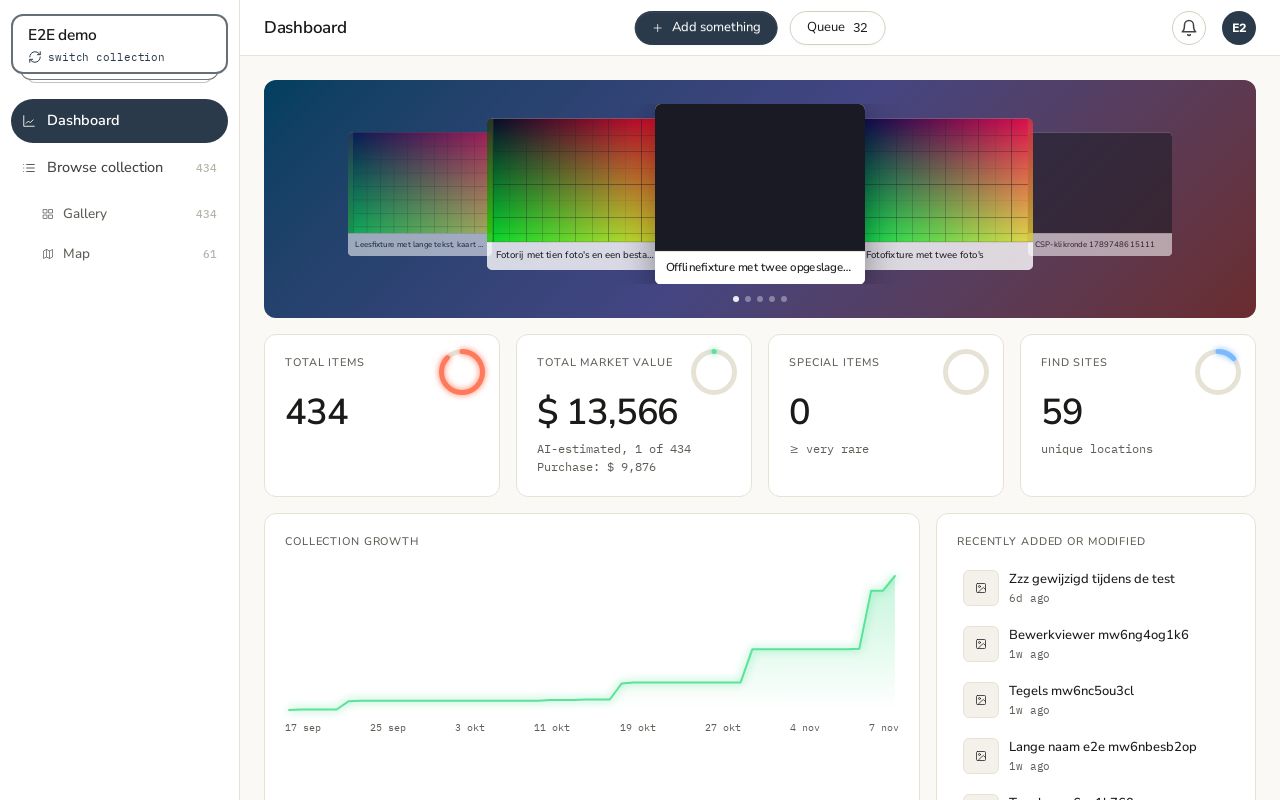
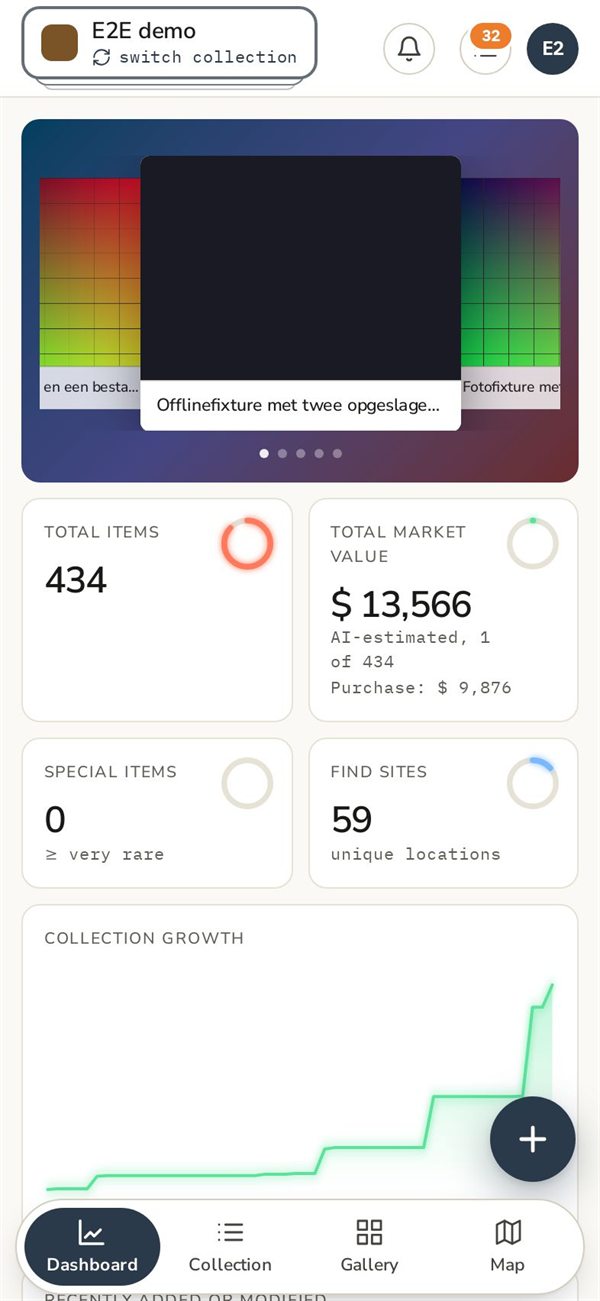
At the top: the photos
If you have items with a photo, the photos at the top take turns every few seconds. Click or tap a photo to open that item. The dots below let you jump to another photo. If you don't have any photos yet, there is a banner with the name of your collection.
The four counters
- Total items: how many items your collection has. The ring fills up on the way to the next milestone (10, 25, 50, 100, 250 and so on). Below it you see how many different values you have for the main field of your collection type, for example "12 values for Period".
- Total market value: the sum of the market values of your items, in the currency you choose in your settings. The line "AI-estimated, 40 of 120" tells you how many items have a market value. If you filled in purchase prices, their total is below it at Purchase.
- The third counter depends on your collection type:
- Special items: for a collection type with a rarity in dots, such as Archaeological finds, the number of items in the two highest levels.
- With photo: for the other collection types, how many items have a photo.
- The fourth counter also depends on your collection type:
- Find sites (Archaeological finds) or Locations (collection types with a map field): the number of different locations. A drawn area counts as one location.
- Acquired this year: for the other collection types, how many items have a Date acquired in this year.
Tip: When privacy mode is on, all amounts are blurred. Handy when someone is looking over your shoulder (see chapter 9).
Distributions
Below the counters you see how your collection is distributed, for example By period or By material. The app picks up to three dropdowns from your collection type for this:
- The first is shown as a donut chart, with the values and counts next to it.
- The next ones are shown as bars. A rarity in dots gets a half circle.
For each distribution you see the eight largest values. The rest is combined on one grey line, such as "+5 others".
Collection growth
The Collection growth chart shows how your collection has grown over time. It counts the items in order of their Date acquired. If all dates are within about three months, it counts per day; otherwise per month.
Note: Items without a Date acquired don't count in the chart. If you see "Not enough spread over time yet to show growth.", fill in that date for more items.
Recently added or changed
At the bottom right are the five items you added or changed most recently, with how long ago ("today", "3d ago", "2w ago"). Click or tap a line to open the item.
An empty collection
If your collection doesn't have any items yet, you see Ready to start! with three buttons:
- Add your first object: opens Add something (see chapter 3).
- Import from CSV or Excel: bring in your list from a spreadsheet (see chapter 7). With Free it has the Plus label, because importing is part of Plus and Pro.
- Take the tour: a short explanation of the app.
The list
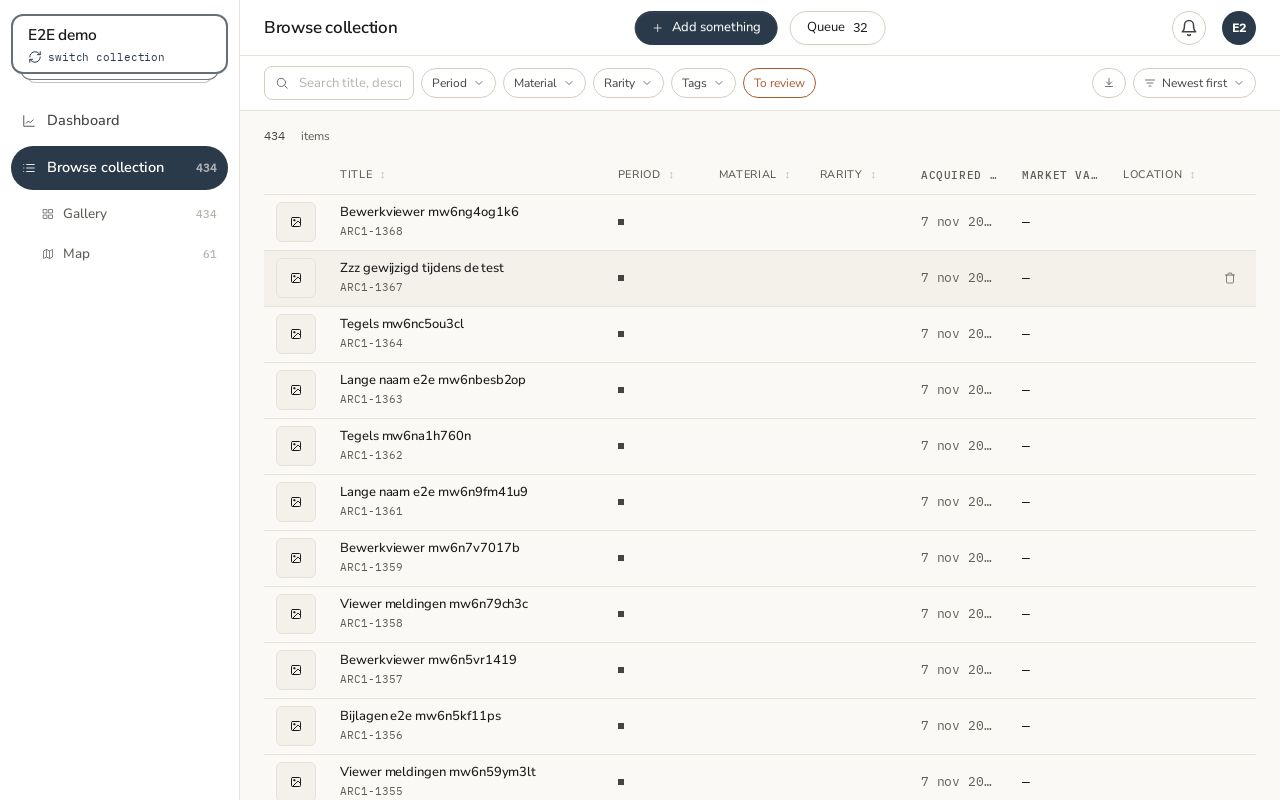
The list shows all your items one below the other, as a table. You search, filter and sort there, and open an item with one click.
Which columns you see
On a laptop
The columns follow your collection type:
- the photo;
- the title, with the registration number below it and, if you filled it in, your own inventory number;
- up to four fields of your collection type, for example Country / realm and Year for Coins & banknotes;
- Acquired (the Date acquired) and Market value;
- Location, only for a collection type with a map field.
You can't choose the columns yourself. If you switch off a field in your collection type (see chapter 2), the column disappears too.
The registration number has no column of its own. To sort by registration number, use the sort button: Number (low→high) or Number (high→low).
On a phone
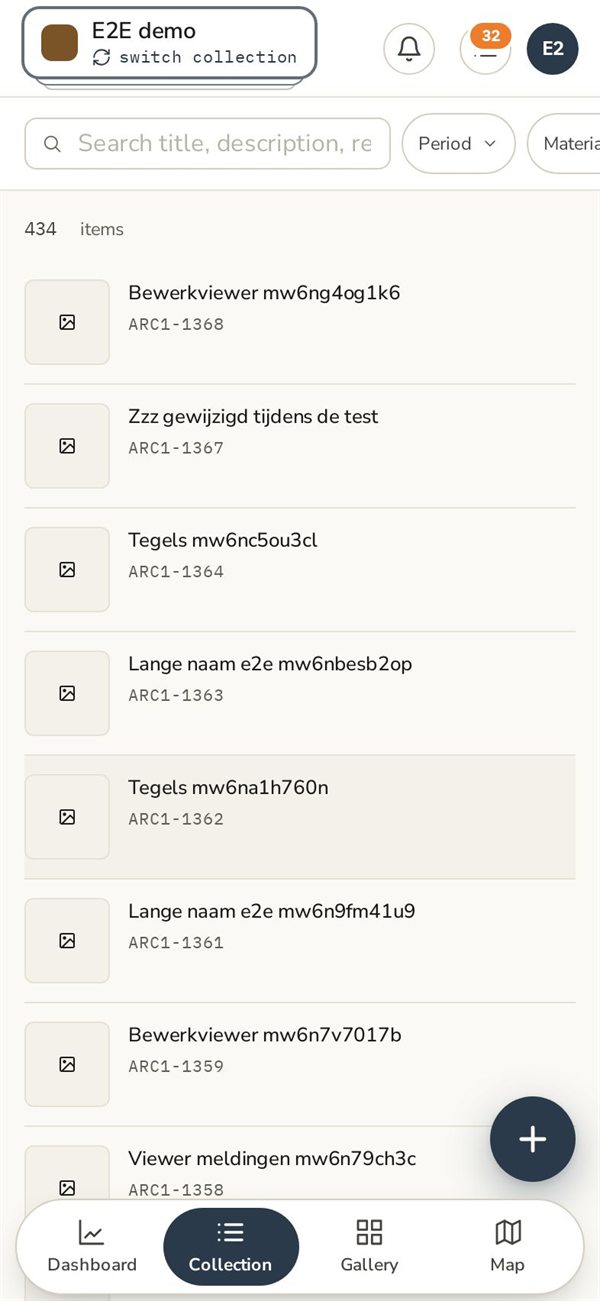
On a phone the list is narrow: you see the photo and the title with the registration number. You see the other details when you open the item.
Go through the list
- Scroll down. The app loads the next items by itself; there is no "more" button.
- Click or tap a row to open the item.
- Close the item with Back to list. You return to where you were in the list, with your search term and filters still on.
Above the list you see how many items you are looking at, for example "240 items", or with a filter "12 items · 240 total".
Tip: An item with the Review label was registered automatically. Check the fields the AI filled in (see chapter 3).
Delete an item from the list
On a laptop
- Move the mouse over the row. A trash icon appears on the right.
- Click the trash icon.
- In the question Delete item?, click Yes, delete.
On a phone
- Swipe the row to the left. A red Delete button appears.
- Tap Delete.
- In the question Delete item?, tap Yes, delete.
The item goes to the trash. You can put it back from there for 30 days (see chapter 4).
The gallery
The gallery shows your items as cards with a large photo. Ideal for browsing through your collection.
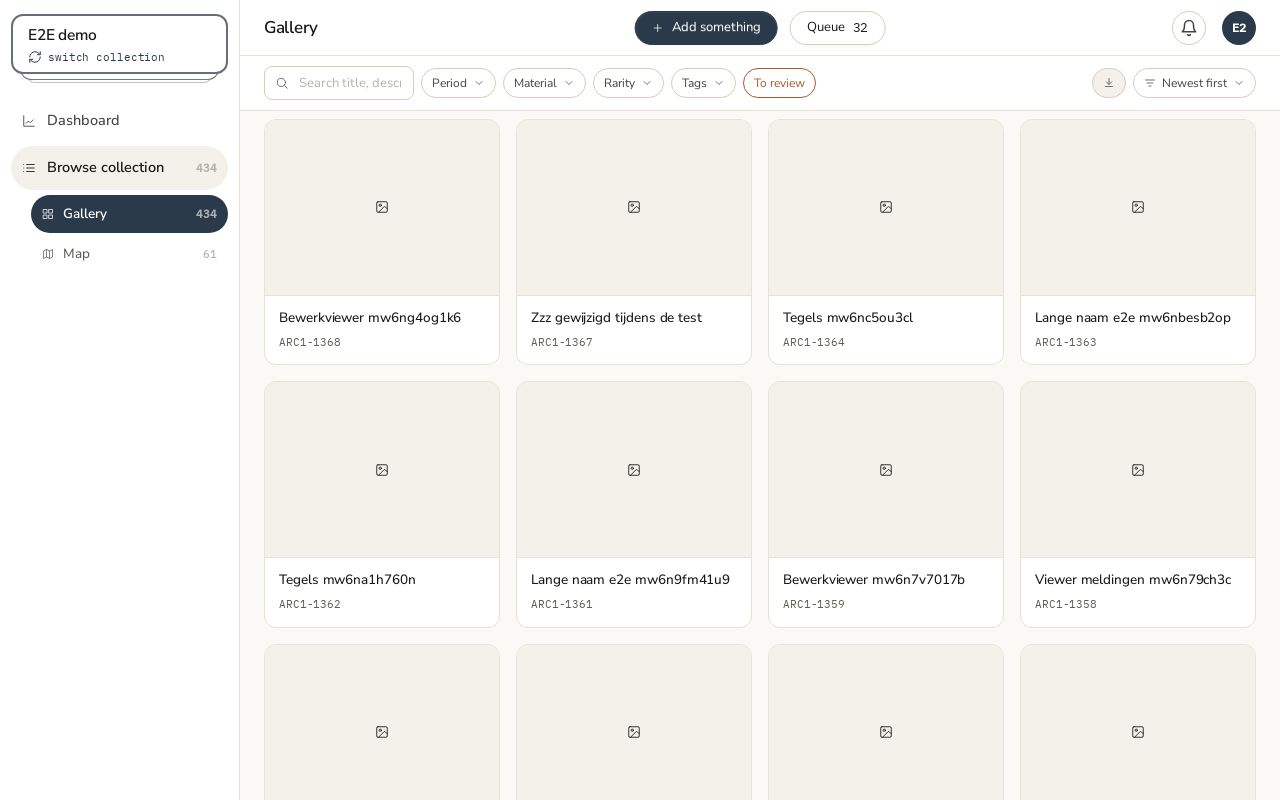
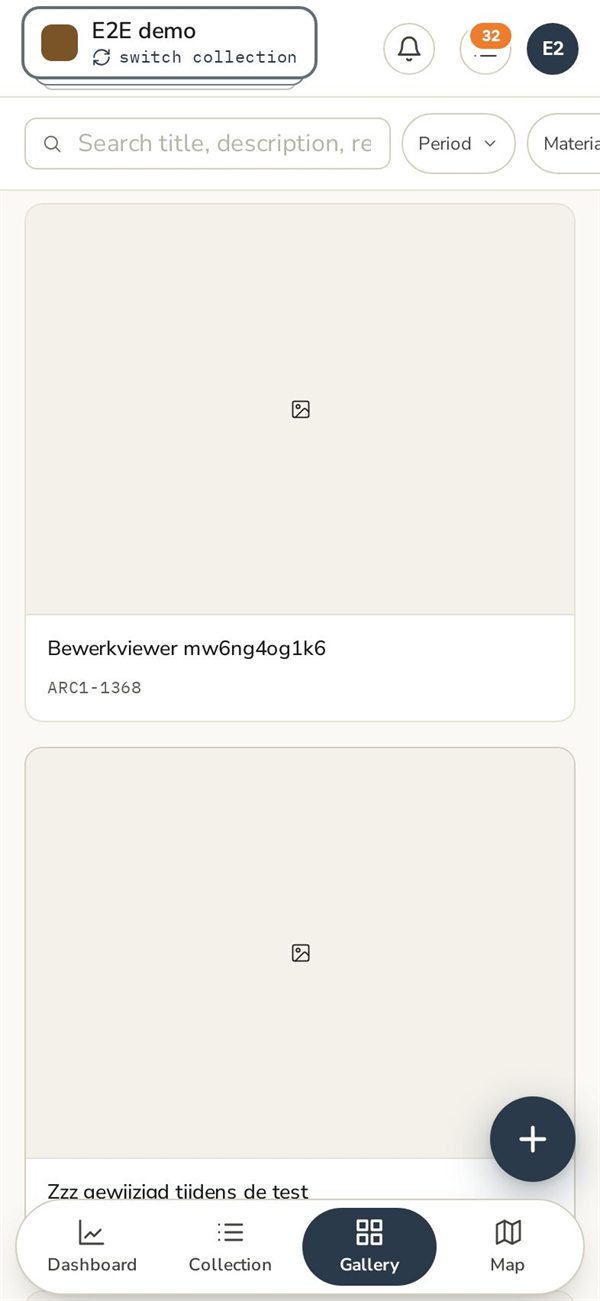
Each card shows:
- the main photo of the item;
- the title;
- the registration number and up to two features, for example country and year;
- for a collection type with a rarity in dots, such as Archaeological finds: those dots.
Click or tap a card to open the item; Back to gallery takes you back. Searching, filtering and sorting work here exactly as in the list. Like the list, the gallery loads more items by itself as you scroll down.
Tip: An item without a photo gets an empty area in the gallery. Add a photo and it stands out right away.
The map
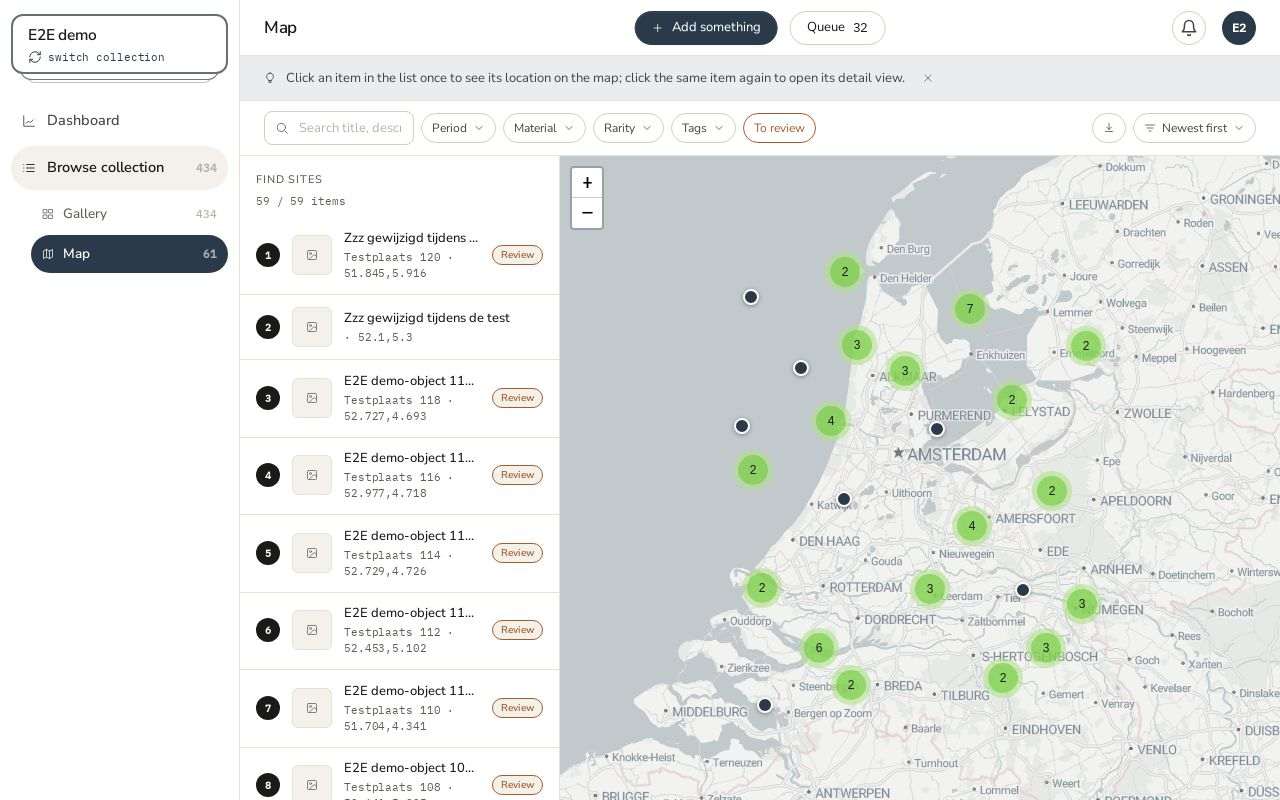
On the map you see where your items come from. Each item with a location is shown as a pin; a drawn area appears as a shape.
On a laptop
To the left of the map is the Find sites list, with a number, the title, the place and the coordinates for each item. At the top you see how many items are on the map.
- Click an item in the list once. The map moves to that pin and shows the name.
- Click the same item again to open it.
You can also work on the map itself:
- Move over a pin to see the title.
- Click a pin to select it. A small card with the photo appears; click it to open the item.
- Click the selected pin again, or double-click a pin, to open the item right away.
- A circle with a number is a group of items close together. Click it or zoom in to see them separately.
On a phone
Below the map is a strip with photos of your items.
- Swipe the strip sideways to see your items.
- Tap a photo. The map moves to that pin.
- Tap the same photo again (with the arrow) to open the item.
Pinch or use the plus and minus to zoom in and out.
Tip: At the top of the map is the tip "Click an item in the list once to see its location on the map; click the same item again to open its detail view." If you already know this, click the cross (Don't show this tip again).
Note: Items without a location are not on the map. With a very large number of items, there is a plus sign after the number in the list: the list then shows a part, but the map shows them all.
Search
The search box helps you find an item quickly. It is at the top of the list, the gallery and the map, with the text "Search title, description, reg-no…".
- Click or tap in the search box.
- Type a word or part of one. The results appear as you type.
Where the app searches
- the title (also in the middle of a word: "ring" also finds "vingerring");
- the registration number and your own inventory number;
- the place of the location;
- the fields of your collection type that also have a filter, such as country, metal or artist;
- the description, but there only at the start of a word: "pel" finds "pelgrimsinsigne", but not "druppel".
Clear a search term
Above the results the Filtered results bar appears with your search term. Click the search term to clear it. On a phone you tap the cross (Clear search).
Filter
Filters show only the items you are looking for, for example only the silver coins from France.
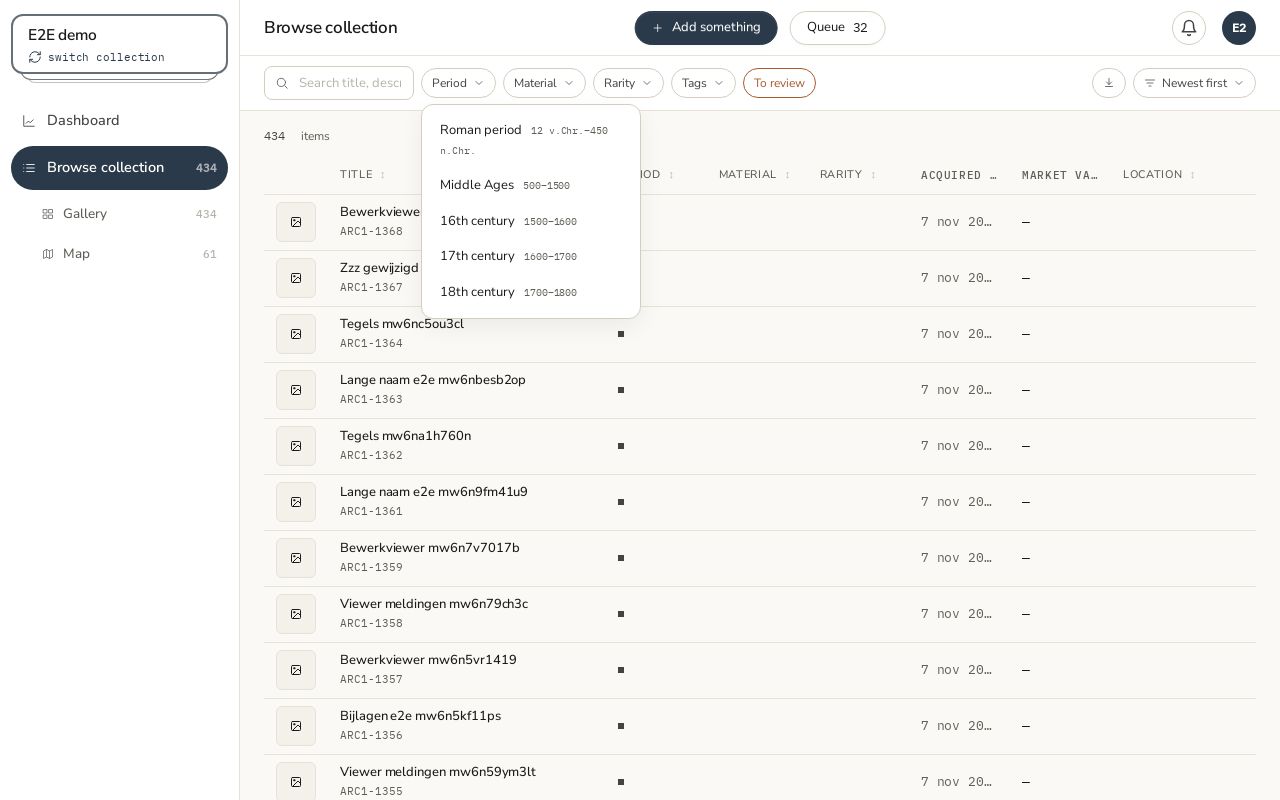
The filter bar has:
- a button for each field of your collection type you can filter on, for example Country / realm and Metal for coins, or Period for archaeological finds. A button only appears when there is something to choose;
- Tags: your own tags;
- To review: only when there are items that were registered automatically and still need checking;
- Reset: as soon as a filter is on.
On a laptop
- Click a filter button, for example Country / realm. A list of values expands.
- Click a value. It gets a checkmark and the list adjusts right away.
- Click more values if you like.
- Click next to the list to close it.
The filter button now shows a number: that is how many values you chose.
On a phone
- Tap a filter button. A panel with the values opens below the bar.
- Tap the values you want.
- Tap Show 12 results at the bottom (the number is the number of matches) to close the panel.
If not everything fits on the screen, swipe the filter bar to the left: there you find the other filters, the download button and the sort button. The panel also has Reset filters and, as soon as a filter is on, Export (see chapter 7).
How filters work together
- Several values within one filter: you see items with one of those values. If you choose France and Belgium under Country / realm, you see the coins from France and those from Belgium.
- Several filters at once: an item must match all of them. Country / realm France plus Metal silver gives only silver French coins.
- Several tags: an item must have all those tags.
- Search plus filters: both at once.
Remove filters
- One value: in the Filtered results bar, click the label of that value.
- Everything at once: click Reset (laptop) or tap Reset filters (phone). That also clears your search term.
Note: If you switch views, for example from the list to the gallery, your search term and filters are gone. If you open an item and go back, they stay.
Tip: With a filter on you can export exactly those items, for example as a PDF for your insurance. See chapter 7.
Sort
Sorting determines the order of your items in the list, the gallery and the map.
- Click or tap the sort button on the right of the filter bar. It shows the current order, by default Newest first.
- Choose an order. It gets a checkmark.
The orders
| Order | What it does |
|---|---|
| Newest first / Oldest first | by the moment you put the item in the app |
| Recently changed | the most recently edited item at the top |
| Number (high→low) / Number (low→high) | by registration number |
| Name (A→Z) / Name (Z→A) | by title |
| Acquired (new) / Acquired (old) | by the Date acquired |
| Market value (high) / Market value (low) | by market value; items without a value count as zero |
| Rarity (high) | the rarest first, for a collection type with a rarity in dots, such as Archaeological finds |
Sort by a column (laptop)
In the list on a laptop you can also click a column header. That way you sort by a field that is not among the orders, such as a year or vintage, if that field has a column in the list. If the field has no column, or you use a phone, you can't sort by it. If the field has a filter, you can filter on it.
- Click a column header, for example Country / realm. The list sorts ascending by that column, with an arrow ↑ in the header.
- Click again to reverse the order (↓).
The sort button then shows the name of that column with the arrow.
Note: The sorting stays when you switch between list, gallery and map. If you switch collections, or open the app again, it starts at Newest first again.
Export from a view
On the right of the filter bar is a download button (Download). With it you make a PDF, CSV or ZIP of your collection or of what you see filtered right now. Chapter 7 explains how that works.