Sets and binder
If you collect Pokémon cards, you see for each set which cards you have and which you are still missing. Each set is in a binder that looks like your real binder: pages with pockets, in the order of the set. Adding a card takes one tap; the app already knows the name, the number and the variants.
Every card you have is a regular item in your collection. So you also see it in the list, the gallery and on the dashboard, and you can add photos, a condition and a purchase price to it.
Where to find the sets
The set view is available for a collection of the Pokémon cards type, also if you customized that collection type.
- On a laptop: click Sets in the sidebar.
- On a phone: tap Sets in the bottom bar.
Note: Sets is not available in a sample collection. In offline mode you only see the sets you have cards from, and only to read (see "Sets offline").
The set list
When you open Sets, you first see the list of sets.
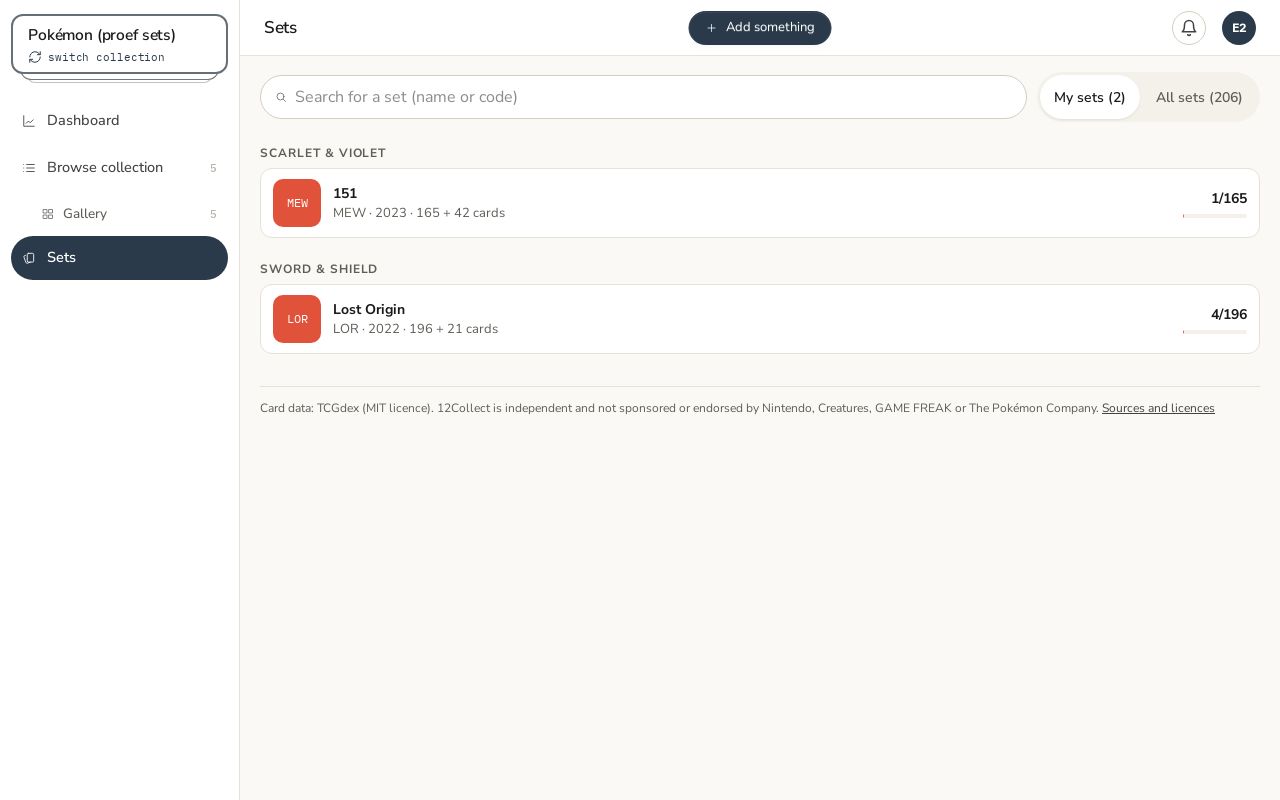
What you see in the list
- At the top a search box: "Search for a set (name or code)".
- Two buttons: My sets (the sets you already have cards from) and All sets. The number after it is the number of sets. If you already have cards, the list opens on My sets; otherwise on All sets.
- The sets are grouped by series, the newest at the top.
- For each set you see the set code, the name and a line with the code, the year and the number of cards. "165 + 42 cards" means: 165 cards with a printed number and 42 secret cards on top of that.
- On the right you see your progress, for example "12/165", with a small bar.
- A promo set gets the Promo label, a subset (such as a Trainer Gallery) gets the Subset label and is indented below the main set.
Open a set
- Choose All sets if you are looking for a set you don't have anything from yet.
- Type part of the name or the code in the search box if you like.
- Click or tap the set. The binder of that set opens.
If you don't have any cards yet, My sets says: "You have no cards from a set yet. Choose "All sets" and open a set to tick off cards."
The binder
The binder shows a set as in a real binder with sleeves: pages with pockets, in the order of the set.
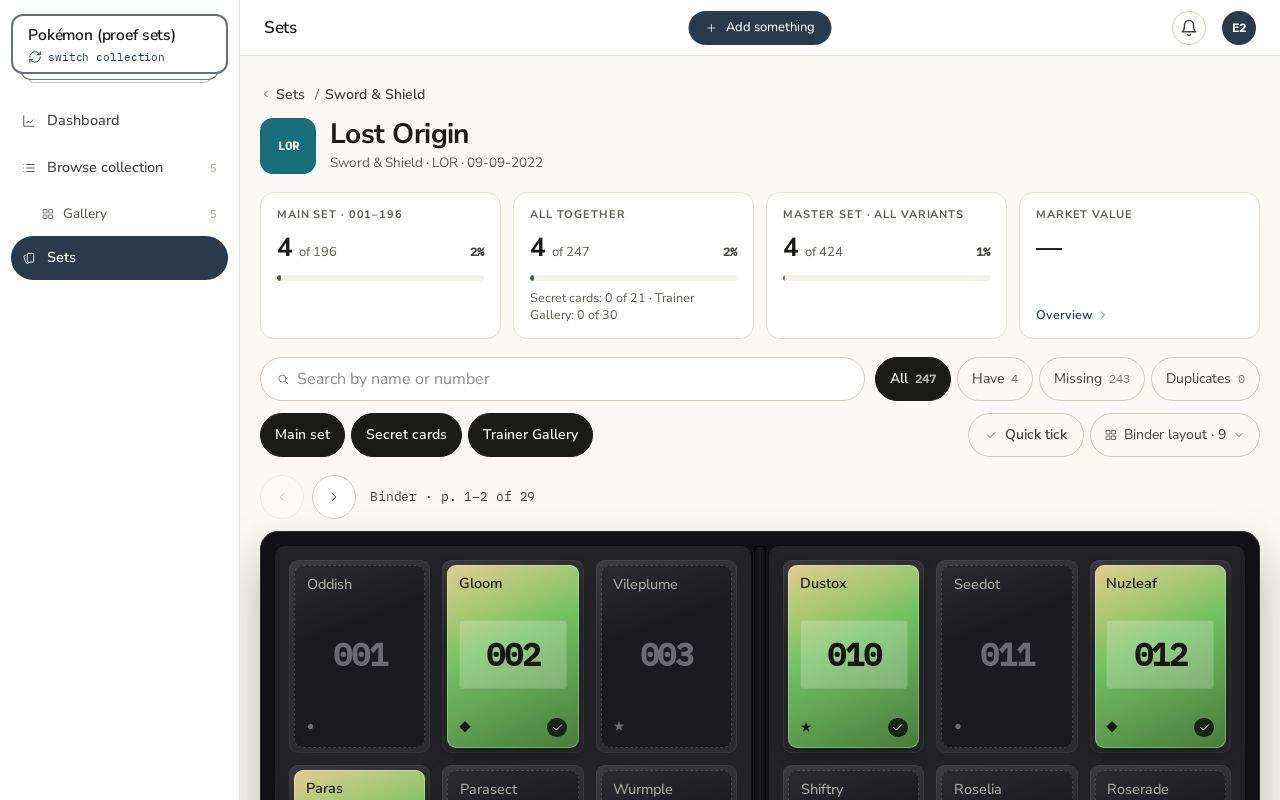
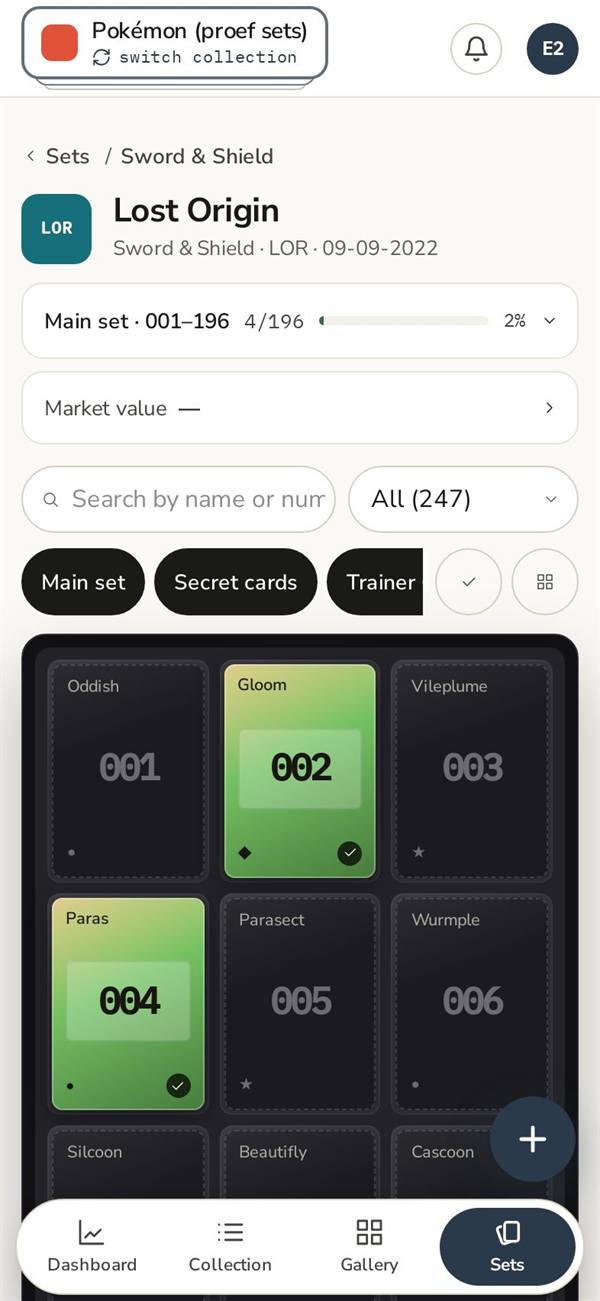
At the top: your progress
Above the binder you see the name of the set, the series, the set code and the release date. Sets (at the top left) takes you back to the set list.
Below that is your progress:
- Main set · 001–165: how many cards with a printed number you have, with the percentage.
- Including secret cards: all cards of the set together. If the set also has a subset, this is called All together, with a line for each part below it.
- Master set · all variants: how many variants you have out of all variants of the cards in the set. Variants you added yourself count too.
If a set has no secret cards or subsets, you see All cards instead of the main set.
On a laptop
The progress is shown as cards next to each other. If you have cards from the set, there is one more card on the right: Market value (see "Overview and value per set").
On a phone
The progress is on one line, so the binder stays high on the screen. Tap the line to see all progress cards. Below it is the Market value line.
Read a pocket
Each pocket is one card from the set.
- Name and number: the name of the card and, in large type, the number.
- Color: the color of the Pokémon type, such as orange red for Fire, blue for Water and green for Grass.
- Rarity: a symbol at the bottom: ● (common), ◆ (uncommon), ★ (rare), ★★ or ★★★ for the rarest. A gold symbol or gold border belongs to the very rarest cards.
- Checkmark: the card is in your collection.
- ×2: you have a variant of this card twice (or more often).
- Photo: if your item has a photo, you see your own photo in the pocket.
A card you are still missing is shown lighter in the binder. A pocket shines if you have more variants of that card, or for the rarest cards.
Tip: The app never shows the official image of a card. If you want to see the real image in your binder, add your own photo to the item.
Below each page you see the page number and how many cards of that page you have, for example "5/9". When the page is full, it says "★ Page complete".
Page through
On a laptop
- You see two pages side by side, like an open binder.
- Click the arrows above the binder. Next to them you see where you are, for example "Binder · p. 1–2 of 21".
- Or use the ← and → arrow keys on your keyboard.
On a phone
- You see one page at a time.
- Swipe left or right to page through.
- Or tap the arrows below the binder, with for example "p. 3 of 21" between them.
Below the binder is All pages · tap to jump: all pages of the set in small, per part of the set. A full page is marked. Click or tap a page to go to it.
Tip: If you open an item from the binder and close it again, you return to the same page.
Search and filter in the binder
- Search: type a name or a number in "Search by name or number". The binder jumps to the first page with a match, and the matching cards get a border. The cross (Clear search) empties the field.
- Filter: choose All, Have, Missing or Duplicates. The number after it is the number of cards. Duplicates are the cards of which you have a variant more than once. On a laptop these are buttons, on a phone a dropdown next to the search box.
A filter doesn't hide any cards: what doesn't match turns grey. That way every page stays the same as the page in your real binder.
Parts of the set
If a set has secret cards or a subset, there are buttons for each part, such as Main set, Secret cards and Trainer Gallery.
- Tap a button to switch that part on or off. At least one part always stays on.
- The binder then shows only the pages of the parts that are on, with their real page number.
If you search for a card that is in a part that is switched off, the app switches the whole set back on.
Add cards
There are two ways: Quick tick for many cards at once, or the card panel for one card with the right variant.
Quick tick
With quick tick you put a whole stack of cards into your collection in a few minutes.
- Open the set.
- Tap Quick tick (on a phone the checkmark next to the filter or the parts of the set). The button turns green: Ticking on. At the bottom the bar "Tap every card you have." appears.
- Tap every card you have. Each tap creates an item with the first regular variant, usually Normal. You see for example "Added: Pikachu (normal)" with Undo.
- Done? Tap Done in the bar at the bottom.
Note: Ticking only adds. If you tap a card you already have, you see "This card is already in your collection." Nothing is ever removed.
Tip: Was it actually a reverse holo or a 1st edition? Open the item with View details (see below) and change Foil or Edition. The card then moves along to that variant in the binder.
Through the card panel
Click or tap a card (with ticking off) and the card panel opens: on a laptop on the right, on a phone from below.
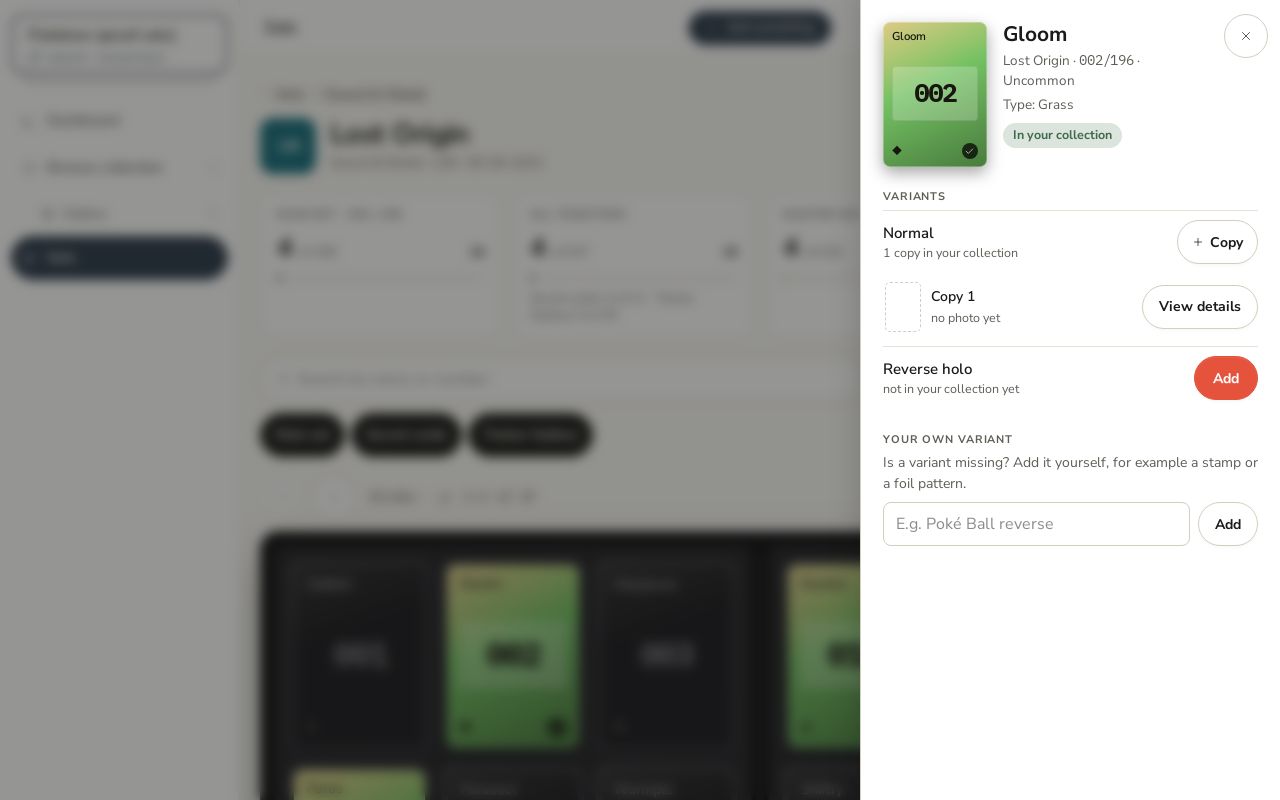
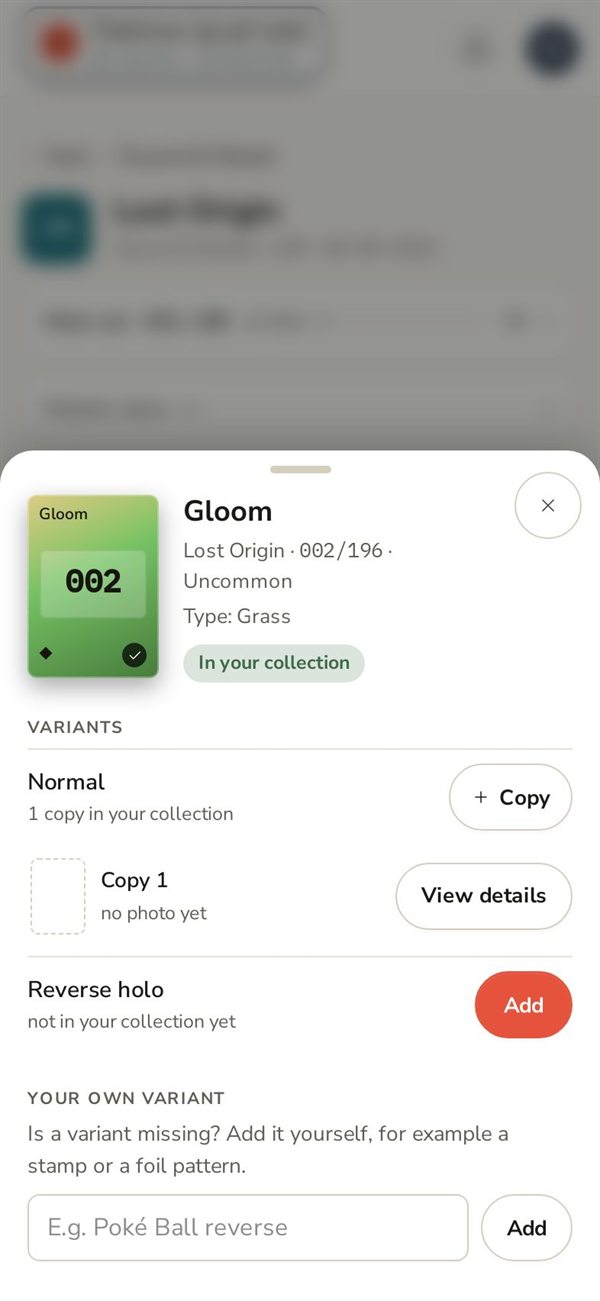
At the top you see your photo (or the pocket), the name, the set, the number, the rarity and the type ("Type: Fire"). Below that you see whether you have the card: Still missing, In your collection or for example In your collection · 2 copies.
Below that are links to the same Pokémon and the same illustrator in other sets, such as All Pikachu cards and All cards by illustrator … (see "All cards of one Pokémon or illustrator").
To add a card:
- Under Variants, find the right variant, for example Normal, Reverse holo, Holo or 1st edition. Special variants, such as a Poké Ball reverse or a card with a stamp, are under Special variants.
- Click or tap Add next to that variant.
- The item is in your collection. You see for example "Added: Pikachu (reverse holo)" with Undo.
Close the panel with the cross, with Escape on a laptop or by tapping next to it.
Add with details
Want to fill in the purchase price, the condition or a note right away? Then use Add with details. This button is in the panel of a card you don't have yet: "The full form, already filled in. For purchase price, condition or notes."
- Tap Add with details.
- The Add something form opens, already filled in with the name, the set, the card number, the variant, the rarity, the type, the illustrator and the language.
- Complete what you want and choose Save.
After saving you see the new item. When you close it, you are back in the set.
A variant of your own
"Is a variant missing? Add it yourself, for example a stamp or a foil pattern."
- Open the card panel.
- Under Your own variant, type the name, for example "Poké Ball-reverse" (at most 60 characters).
- Tap Add.
An item with that variant is added. The variant then also appears in the panel and counts toward Master set · all variants.
Several copies of the same card
Do you have a card twice? Each copy is its own item, with its own photo, condition and purchase price.
- Open the card panel.
- Tap + Copy next to the variant.
- A new item is added, with a message such as "Pikachu: now 2 copies".
Below the variant your copies are listed one below the other: Copy 1, Copy 2, with the photo (or "no photo yet"), the condition (such as NM or PSA 9) and the purchase price. In the binder the pocket gets ×2.
Note: With Free you can have 500 items. Every card and every copy counts as an item.
View, edit or delete a card
View details
In the card panel, each copy has View details. It opens the item (see chapter 4). There you can:
- view and edit the fields, such as condition and purchase price;
- add a photo;
- delete the item.
When you close the item, you are back in the binder, on the same page.
A photo of your own
- If you have the card: open the item with View details and add a photo. The photo then appears in the pocket in the binder and at the top of the card panel.
- In the card panel, tap the photo ("Tap to enlarge") to see it large, with zoom. When you close the photo, you are back in the panel.
- If you are still missing the card, it says: "Add the card first, then you can add your own photo."
Remove a card
- Just added: tap Undo in the message within a few seconds. The item is then completely gone.
- Later: open the copy with View details and delete the item. It goes to the trash, where you can put it back for 30 days.
You can't remove anything in the binder or the card panel itself; there you only add.
From an item to the set
If you open a Pokémon card from the list or the gallery, the item shows View in set. It opens the binder on the page with that card, with a border around it. A card from a subset opens the binder of the main set.
All cards of one Pokémon or illustrator
Do you collect one Pokémon, for example all Pikachu cards, or the work of one illustrator? Then you see all those cards together, from every set.
- Open a set and click or tap a card. The card panel opens.
- Below the name, tap All Pikachu cards (with the name of your Pokémon) or All cards by illustrator ….
- A binder with all those cards opens.
What you see:
- At the top the name, with the Pokédex number (for example #025) or the first letter of the illustrator, and how many cards there are, in a line like "… cards · from … sets".
- Your progress: In your collection, how many of those cards you have, with the percentage.
- The cards in the pages of a binder, oldest set first. Each pocket shows the set code, so you can see which set the card comes from.
- Search (Search by name or number), the filters All, Have, Missing and Duplicates, and paging work as in the binder of a set.
Tap a card to open the card panel. There you add the card, just as in the set. With Sets at the top left you go back to the set list.
Note: Quick tick and Binder layout are not available here; you add cards through the card panel. Search looks at the name and number of the card, not at the name of the set. This binder is not in the offline copy.
Tip: Trainer and Energy cards have no Pokédex number. For those cards you only see the link to the illustrator. If a card shows more than one Pokémon, each Pokémon gets its own link.
Binder layout
Set up the binder like your real binder, and every page in the app matches the page on your shelf.
- Tap Binder layout · 9 (on a phone the icon with the small squares). The panel opens below the button.
- Under Pockets per page, choose 4 (2×2), 9 (3×3) or 12 (4×3).
- If the set has more parts, you choose whether they start on a new page, for example "Secret cards on a new page".
- Under Language of your cards, choose the language of the card names: English, German, French, Italian, Spanish or Portuguese.
- Tap the button again to close the panel.
At the bottom of the panel the app calculates how many pages and sheets the set needs, and which binder it fits in, for example "21 pages · 11 sheets (front and back) · fits a 360-card binder."
The app remembers the layout per collection, also on your other devices. By default there are 9 pockets per page and each part of the set starts on a new page.
Tip: There are no Dutch card names. If you use the app in Dutch, the names are in English by default. Cards you add get the name and the language you choose here.
Overview and value per set
How much is your set worth, and what did you pay for it? You see that in the overview of the set. It appears as soon as you have cards from the set. Only the cards you have count; cards you are missing don't.
- Open the overview:
- On a laptop: click the Market value card next to your progress (with Overview at the bottom).
- On a phone: tap the Market value line below your progress.
- The Overview panel opens.
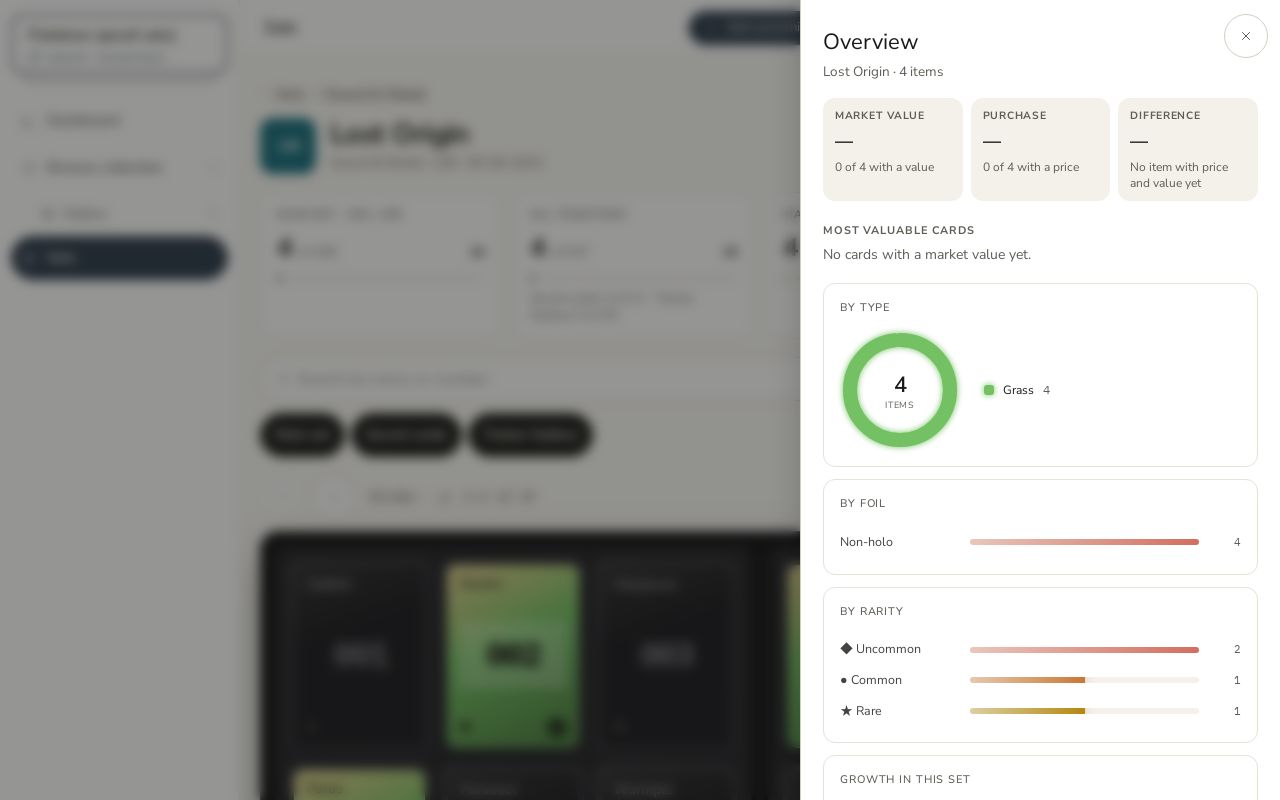
The overview shows:
- Market value: the market value of your cards from this set, with how many of them have a value ("12 of 30 with a value").
- Purchase: what you paid for them, with how many of them have a price.
- Difference: the difference between market value and purchase, only for items where you know both.
- Most valuable cards: your five most expensive cards from the set. Tap a card to open the item.
- Distributions as on the dashboard, for example by type (in the colors of the binder), by foil and by rarity.
- Growth in this set and the cards you added or changed most recently.
Tip: When privacy mode is on, the amounts are blurred, just like on the dashboard.
Link existing cards
If you put Pokémon cards into your collection with Add something or automatic registration, the app links them to the right card when you save, as long as Set and Card number are filled in and exactly one card matches. If that doesn't work, they are not (yet) in the binder. You then link them yourself.
The set list then shows a message, for example "3 cards in your collection have no set in the catalogue yet." with "So they're not in the binder yet. Review them and link them to the right card."
- Open Sets. You see the set list.
- In the message, click or tap View. For each card you see the title and "Set: … · Number: …".
- For each card, choose based on what it says:
- "Found: …": the app is sure. Click Link. If it says "The set in the item becomes …", the app immediately puts the right set name in the item.
- A dropdown ("Choose the card"): more cards match. Choose the right one and click Link.
- "Not found. Change Set or Number in the item.": click Open item and correct Set or Card number.
- To link all certain cards at once, click Link all 5 certain cards (the number varies).
You see "Card linked." The card is now in the binder, and the item shows View in set. The app never links without you clicking.
Note: This message only lists cards where Set and Card number are both filled in. If one is missing, fill it in in the item first.
Sets offline
With Plus or Pro, the binder of your sets goes along in the offline copy, for example to a fair or a trading day. To do this, set the collection to Available offline in My collections and fetch the offline copy on this device.
In offline mode, Sets appears in the sidebar (laptop) or the bottom bar (phone) once the binder of that collection is on your device.
- The set list only shows the sets you have cards from: "The sets you have cards from. Open a set to view the binder." There is no All sets and no search field.
- The binder looks the same as online, with the binder layout you chose online: your progress, search, paging with the arrows, by swiping or with the arrow keys, and All pages · tap to jump below the binder. The filters are All, Have and Missing. A button for a part of the set, such as Secret cards, jumps to the first page of that part.
- Open a card: tap a card you have and the item opens. If you have more copies, you first choose which copy. When you go back, the binder is still there.
- View in set is also in an item offline, below the title.
Offline you can only read. Below the binder it says: "Read only. Tap a card you have to open the item." Ticking off, adding, the card panel with the variants, the binder layout, the overview with the market value and "All cards of one Pokémon or illustrator" are only available online.
Good to know
- Source of the card data: at the bottom of the set list and the binder you see where the card data comes from, with the link Sources and licences. 12Collect is independent and not sponsored or endorsed by the makers of Pokémon.
- Is a set or card not listed? Then add it with Add something. It is then in your collection, but not in the binder.
- Free: every card and every copy is an item and counts toward the 500 items of Free. When you reach that limit, the app tells you when you add a card.
- Sample collections: Sets is not available there.
- Offline mode: you see the binder of your own sets, read only (see "Sets offline").